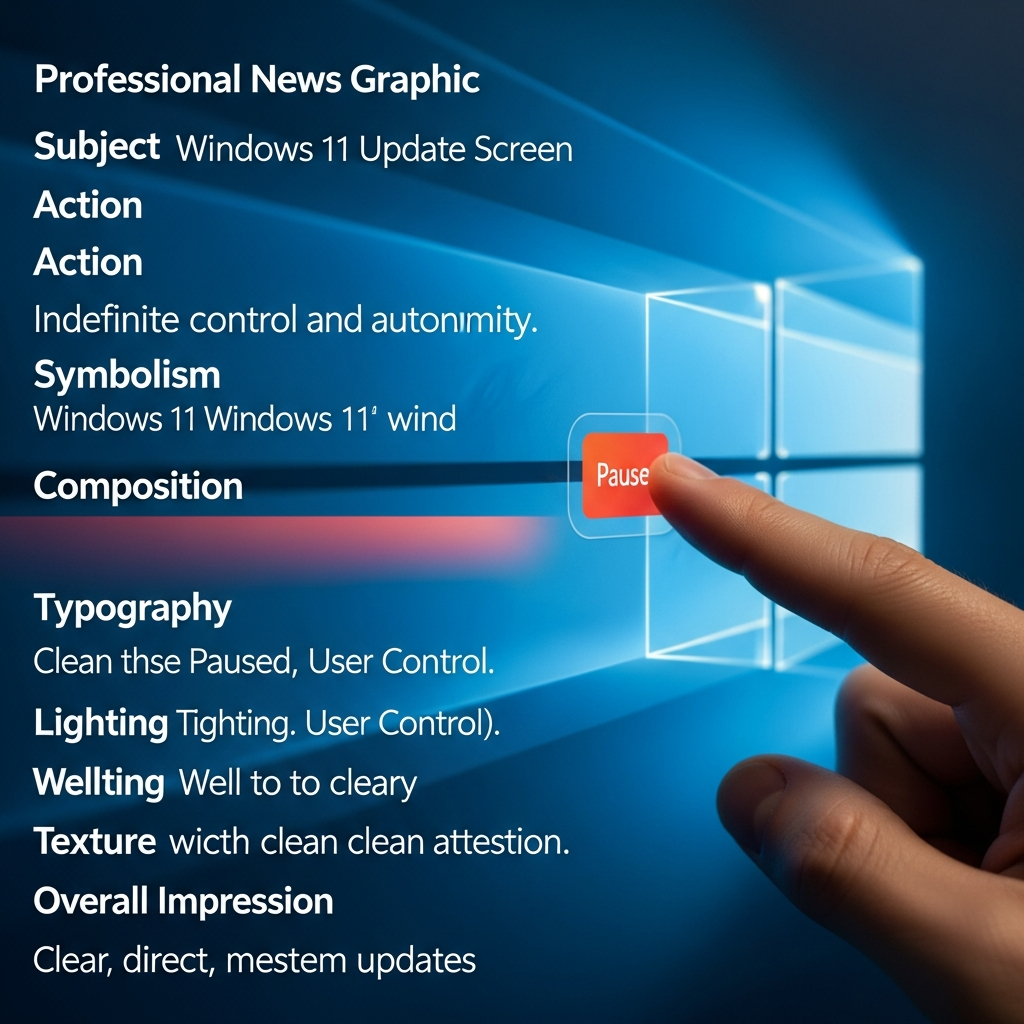
Tired of disruptive, forced updates interrupting your crucial work or intense gaming sessions? You’re not alone. Microsoft has finally heard the collective frustration. A groundbreaking shift in how Windows 11 handles updates is here. Users are gaining unprecedented control, including the highly anticipated ability to effectively pause Windows 11 updates indefinitely. This move signals a new era for user autonomy and system maintenance, driven by extensive community feedback.
The End of Forced Interruptions
For years, Windows users have grappled with mandatory updates. These often arrived at the most inconvenient times. Unexpected reboots during presentations or mid-match gaming were common annoyances. This lack of user control fueled widespread dissatisfaction. Microsoft’s latest changes aim to rectify these long-standing issues. They are putting power back into the hands of the user. This strategic shift promises a more streamlined and less intrusive operating system experience for everyone.
Microsoft Listens: A New Philosophy for Windows 11 Updates
Microsoft’s commitment to improving the Windows 11 user experience is clear. The company cited consistent feedback about “disruption caused by untimely updates.” This prompted a comprehensive overhaul of its update policy. Aria Hanson from Microsoft confirmed these changes in a blog post. Over 7,600 pieces of user feedback directly influenced this decision. This demonstrates a significant pivot towards a user-centric approach. Pavan Davuluri, Microsoft EVP of Windows & Devices, emphasized making updates “predictable and easy to plan around.” This new philosophy seeks to rebuild user trust. It aims to make Windows 11 a platform users genuinely enjoy.
Unlocking Indefinite Control: How the Update Pause Works
The centerpiece of these improvements is a vastly enhanced update pause feature. Previously, users could only defer updates for a limited period, often just a few weeks. Now, Windows 11 users can pause updates for 35 days at a time. The crucial difference? This 35-day limit can be reset repeatedly. Microsoft explicitly states there are “no limits” to how often this window can be extended. This effectively grants users the power to indefinitely defer updates.
This flexibility means you won’t be disturbed for 35 days. After that period, you can simply re-pause them. This grants true control over when updates are installed. While security updates remain vital, users now decide the most opportune moment. This prevents unexpected installations that derail your workflow. It represents a significant departure from previous mandatory update cycles.
Beyond the Pause: Essential Quality-of-Life Upgrades
Microsoft’s update overhaul extends beyond just pausing. Several other “quality-of-life upgrades” are rolling out. These enhancements address other common pain points in Windows 11:
Shut Down or Restart Without Updating: A major source of frustration has been eliminated. Windows 11 will now consistently offer distinct “Shutdown” and “Restart” options. These appear alongside the “Update and shut down” or “Update and restart” choices. This ensures users are not forced into an update cycle. You can now power down or reboot your PC immediately, deferring updates until later.
Skip Updates During Initial Setup: Setting up a new Windows 11 PC could previously be lengthy. Mandatory updates during the Out-of-Box Experience (OOBE) were a major bottleneck. A new “Update later” option allows users to bypass these initial updates. This streamlines the onboarding process. You get to your desktop faster, choosing to update at your convenience.
Clearer Driver Update Titles: Generic driver titles often caused confusion. It was hard to know which hardware component was being updated. Now, driver updates will feature more descriptive titles. They will explicitly state the device class. Examples include “display,” “audio,” or “battery.” This transparency allows for more informed decisions.
Unified and Streamlined Update Experience: Microsoft is working towards a “unified update experience.” The goal is to bundle updates together. This reduces the frequency of reboots required for installations. Updates will download silently in the background. They will then await a “coordinated installation and restart.” This aims for a “single monthly restart” model. This approach minimizes interruptions, making the process smoother.
Who Gets These Features First? The Windows Insider Rollout
These exciting new Windows Update features are not yet available to everyone. They are currently rolling out to participants in the Windows Insider program. Specifically, users in the Dev and Experimental Channels are receiving them. This phased deployment allows for thorough testing and refinement. It ensures stability before a wider public release. If you’re eager to experience these changes now, joining the Windows Insider program is an option. However, be aware that Insider builds can be less stable. General availability for all Windows 11 users is expected in the coming weeks or months.
The Balancing Act: Convenience Versus Security
While indefinite pausing offers unmatched convenience, it’s crucial to acknowledge the trade-offs. Most Windows updates, especially those released on “Patch Tuesday,” contain vital security fixes. Deferring these indefinitely can expose your system to vulnerabilities. Cyber threats evolve rapidly. Missing critical security patches can leave your data and privacy at risk.
Expert Insight: It’s generally recommended to install security updates promptly. Use the pause feature strategically. Defer updates only when absolutely necessary, such as during critical work periods. Schedule them for off-peak hours instead. This ensures you maintain a secure and stable operating environment. Balance your newfound control with diligent security practices for optimal results.
How to Proactively Manage Your Windows 11 Updates
With more control comes greater responsibility. Here’s how to best manage your Windows 11 updates:
- Access Update Settings: Navigate to
Settings > Windows Update. This is your central hub for managing all updates. - Utilize the Pause Feature: You’ll find the “Pause updates” option here. Click it to defer updates for 35 days. Remember to revisit this setting before the period ends to extend it if needed.
- Review Available Updates: The “Available updates” section now offers more comprehensive information. Check this regularly to understand what’s pending.
- Schedule Smartly: When you’re ready to update, consider doing so during non-critical times. Evenings or weekends are often ideal. This minimizes disruption to your daily tasks.
- Stay Informed: Keep an eye on official Microsoft announcements. These will inform you about important updates and general release schedules.
By actively engaging with these new controls, you can tailor the update experience to your personal needs.
Frequently Asked Questions
How exactly does the indefinite Windows 11 update pause work?
Microsoft has enhanced the “Pause updates” feature in Windows 11. You can now pause updates for a period of 35 days. The key innovation is the ability to repeatedly extend this 35-day pause. When the current pause period is nearing its end, you simply go back into Settings > Windows Update and click to pause them again. There are no restrictions on how many times you can reset this timer, effectively allowing you to defer updates for as long as you want, giving you full control over when they install.
Which Windows Insider channels are receiving these new update features first?
These significant update experience changes are initially rolling out to specific groups within the Windows Insider program. Users enrolled in the Dev Channel and Experimental Channels are the first to gain access to these new controls. This phased deployment allows Microsoft to gather feedback and refine the features before making them available to a broader audience, including the general public in the coming weeks or months.
What are the potential risks of indefinitely pausing Windows 11 updates?
While pausing updates indefinitely offers convenience, it carries significant risks, primarily concerning system security and stability. Many Windows updates, particularly the monthly “Patch Tuesday” releases, include critical security fixes for newly discovered vulnerabilities. By consistently deferring these, you leave your system exposed to potential cyberattacks, malware, and data breaches. Additionally, feature updates often bring performance improvements and bug fixes. Skipping these can lead to an outdated system, compatibility issues with new software, and a less stable overall user experience. It’s crucial to balance convenience with regular system maintenance.
In summary, Microsoft’s revamped approach to Windows 11 updates marks a pivotal moment. The power to pause updates indefinitely, coupled with other thoughtful improvements, finally gives users the control they’ve long demanded. This shift towards a more user-centric model promises a less disruptive and more enjoyable Windows experience. Embrace these new capabilities responsibly. Leverage them to maintain both your productivity and your system’s security. Explore your Windows Update settings today and take charge of your digital experience!