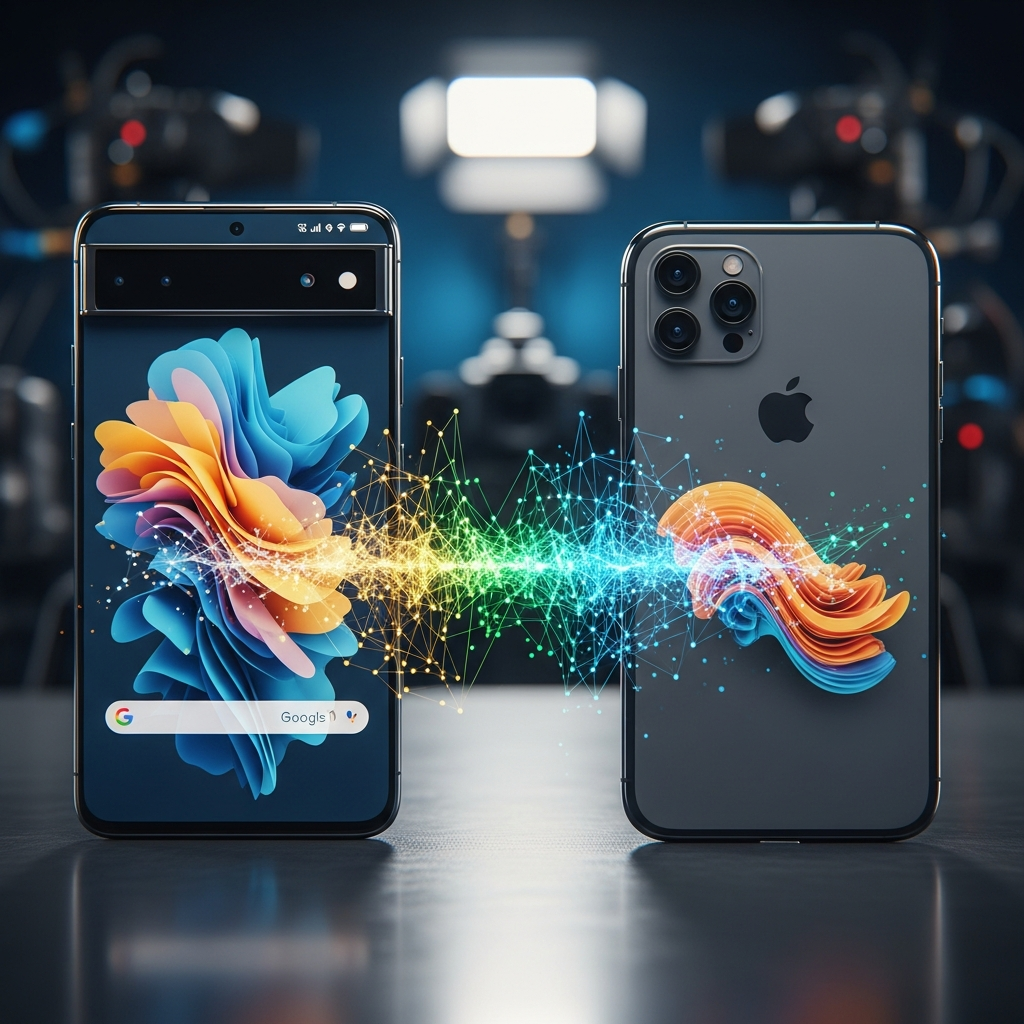
The long-standing digital divide between Android and iPhone users for seamless file sharing has finally crumbled. Google has unveiled a groundbreaking update, allowing its Quick Share feature to directly interoperate with Apple’s AirDrop. This means Pixel 10 family devices can now effortlessly send and receive files, like photos and videos, with iPhones, iPads, and even macOS devices. This monumental shift marks a new era of mobile interoperability, significantly enhancing user convenience and connectivity.
Breaking Down the Digital Wall: Quick Share Meets AirDrop
For years, the experience of sharing files wirelessly between an Android phone and an iPhone felt like navigating two different worlds. Apple’s AirDrop created a “walled garden” of seamless sharing exclusively within its ecosystem, while Android’s Quick Share (formerly Nearby Share) provided a similar convenience for Android, Windows, and ChromeOS devices. This meant users often resorted to slower, less secure methods like email, messaging apps, or cloud storage for cross-platform transfers.
Today, Google has shattered that barrier. With an independent implementation, Quick Share on the Pixel 10 series can now “speak” directly to AirDrop on Apple devices. This isn’t a workaround; it’s a direct, peer-to-peer connection that empowers users to share content without worrying about device compatibility. This significant development is poised to redefine how millions of Android and iOS users interact daily.
How This Cross-Platform File Transfer Works
Utilizing this new Quick Share AirDrop functionality is surprisingly straightforward, designed to mirror the native AirDrop experience. Whether you’re sending from a Pixel 10 to an iPhone or vice-versa, a few simple steps unlock seamless transfer capabilities. The core mechanism relies on AirDrop’s “Everyone for 10 minutes” discovery mode, a crucial temporary setting on the Apple device side.
To Send from a Pixel 10 to an iPhone:
Prepare the Apple Device: The iPhone, iPad, or Mac recipient must first adjust their AirDrop settings to “Everyone for 10 minutes.” This setting, found in Control Center (long-press Wi-Fi/Bluetooth) or Settings > General > AirDrop, allows non-contacts to discover the device for a limited time.
Initiate on Pixel 10: On your Pixel 10, select the file(s) you wish to share (photos, videos, documents). Tap the “Share” icon and choose “Quick Share.”
Select Recipient: Your Pixel 10 will discover nearby Apple devices with AirDrop enabled for “Everyone for 10 minutes.” Select the appropriate iPhone from the list.
Accept on iPhone: The Apple device user will receive a standard AirDrop request. They simply need to tap “Accept” to receive the files.
To Send from an iPhone to a Pixel 10:
Prepare the Pixel 10: Ensure your Pixel 10 is discoverable. You can typically enable Quick Share from your Quick Settings panel and set it to “Receive” or be visible to “Anyone.”
Initiate on iPhone: On your iPhone, select the file(s) you want to share. Tap the “Share” icon and choose “AirDrop.”
Select Recipient: Your iPhone will display nearby AirDrop-compatible devices, including your Pixel 10. Select the Pixel device.
Accept on Pixel 10: The Pixel 10 user will receive a Quick Share notification. Accepting this completes the transfer.
This process ensures a direct, device-to-device connection, maintaining the privacy and security users expect from modern file sharing.
Uncompromising Security and Privacy Safeguards
Google has made it clear that security was paramount in developing this interoperability. This groundbreaking feature was built with strong safeguards, undergoing rigorous internal privacy and security reviews, including extensive threat modeling and penetration testing. To further solidify its robustness, an independent cybersecurity firm, NetSPI, was commissioned to conduct an audit. Their findings confirmed the system’s strength, noting it was “notably stronger” than comparable implementations, with zero data leakages observed during transfers.
A key insight into its development reveals the strategic use of the Rust programming language. By leveraging Rust, Google effectively eliminated entire classes of memory-safety vulnerabilities by design, adding a foundational layer of security to the wireless data package parsing. Furthermore, the direct, peer-to-peer nature of the connection is a critical privacy feature. Data is never routed through external servers, and shared content is never logged, ensuring that your personal moments remain private. While the “Everyone for 10 minutes” AirDrop setting is currently necessary for Apple devices, Google’s commitment to security means users can confidently share sensitive information. Users should, however, always verify the recipient device on their screen to prevent accidental sharing with unintended parties.
The Pixel 10 Paves the Way: Future of Interoperability
Currently, this incredible Android iPhone file sharing capability is exclusive to Google’s Pixel 10 family, including the Pixel 10, Pixel 10 Pro, Pixel 10 Pro XL, and Pixel 10 Pro Fold. This initial rollout allows Google to refine the experience and gather user feedback. However, Google has explicitly stated its plans to expand this feature to a wider range of Android devices in the future, promising a broader reach for this seamless cross-platform sharing.
This move by Google is part of a larger strategy to enhance compatibility between competing operating systems. It follows other significant initiatives like the widespread adoption of RCS messaging on iPhones and the introduction of unknown tracker alerts. Google is clearly committed to breaking down long-standing barriers, making the mobile experience more unified and user-friendly, regardless of the chosen device. Looking ahead, Google also expressed an ambition to collaborate with Apple to enable a “Contacts Only” mode for AirDrop integration, which would offer an even more controlled and secure sharing environment. While Apple has yet to comment, this proactive step by Google sets a compelling precedent for future collaboration in the tech world.
Why This Matters for Everyday Users
The ability to instantly share photos, videos, and documents between Android and iPhone is more than just a technical achievement; it’s a huge win for everyday users. It eliminates friction in social situations, streamlines collaborative work, and removes a common frustration point that often drove users towards one ecosystem over the other. Imagine effortlessly sharing vacation photos with friends, sending a work document to a colleague, or quickly transferring a funny video to family members—all without conversion, email attachments, or third-party apps.
This development fundamentally improves the user experience by prioritizing convenience without sacrificing security. It empowers users to choose their devices based on preference, not because of restrictive sharing limitations. As this feature rolls out to more Android devices, it will further democratize mobile communication, making the “walled garden” concept a relic of the past. It’s a clear signal that the future of mobile technology will increasingly focus on seamless integration across platforms, putting the user’s needs first.
Frequently Asked Questions
How does Google enable Quick Share to work with Apple’s AirDrop without Apple’s help?
Google developed its own independent implementation of the AirDrop protocol within Quick Share, focusing heavily on reverse-engineering the necessary communication standards while prioritizing security. This was achieved without any collaboration or direct involvement from Apple. Google’s privacy and security teams, along with an independent audit by NetSPI, rigorously vetted this self-developed solution to ensure its robustness and protection against data leakages, even leveraging the Rust programming language for enhanced memory safety. The connection is direct and peer-to-peer, not routed through servers.
What specific steps do I need to take on my iPhone to receive files from a Pixel 10 via Quick Share?
To receive files from a Pixel 10 via Quick Share, your iPhone (or iPad/Mac) must have its AirDrop settings temporarily changed to “Everyone for 10 minutes.” You can access this by going to Settings > General > AirDrop, or by long-pressing the Wi-Fi/Bluetooth icons in your Control Center and tapping the AirDrop icon. Once enabled, the Pixel 10 user will see your device appear as a recipient option within Quick Share, and you will receive a standard AirDrop request to accept the transfer.
Which Pixel devices currently support cross-platform Quick Share with AirDrop, and when will it expand?
Currently, the cross-platform Quick Share with AirDrop functionality is exclusively available to Google’s Pixel 10 family. This includes devices like the Pixel 10, Pixel 10 Pro, Pixel 10 Pro XL, and Pixel 10 Pro Fold. Google has confirmed its intention to expand this feature to a wider range of Android devices in the future. While a specific timeline for this broader rollout has not yet been announced, this initial launch on the Pixel 10 series marks the first step in bringing this crucial interoperability to the wider Android ecosystem.
The Future of Connected Devices is Here
The introduction of Quick Share’s interoperability with AirDrop on the Pixel 10 family is more than just a feature update; it’s a strategic move that significantly reshapes the landscape of mobile technology. It showcases Google’s commitment to creating a more open and connected digital world, where the type of device you own doesn’t dictate your ability to share moments and information with friends, family, or colleagues. As this technology expands, we can expect a truly seamless future for mobile device interaction, making daily digital life simpler, more efficient, and undeniably more connected.