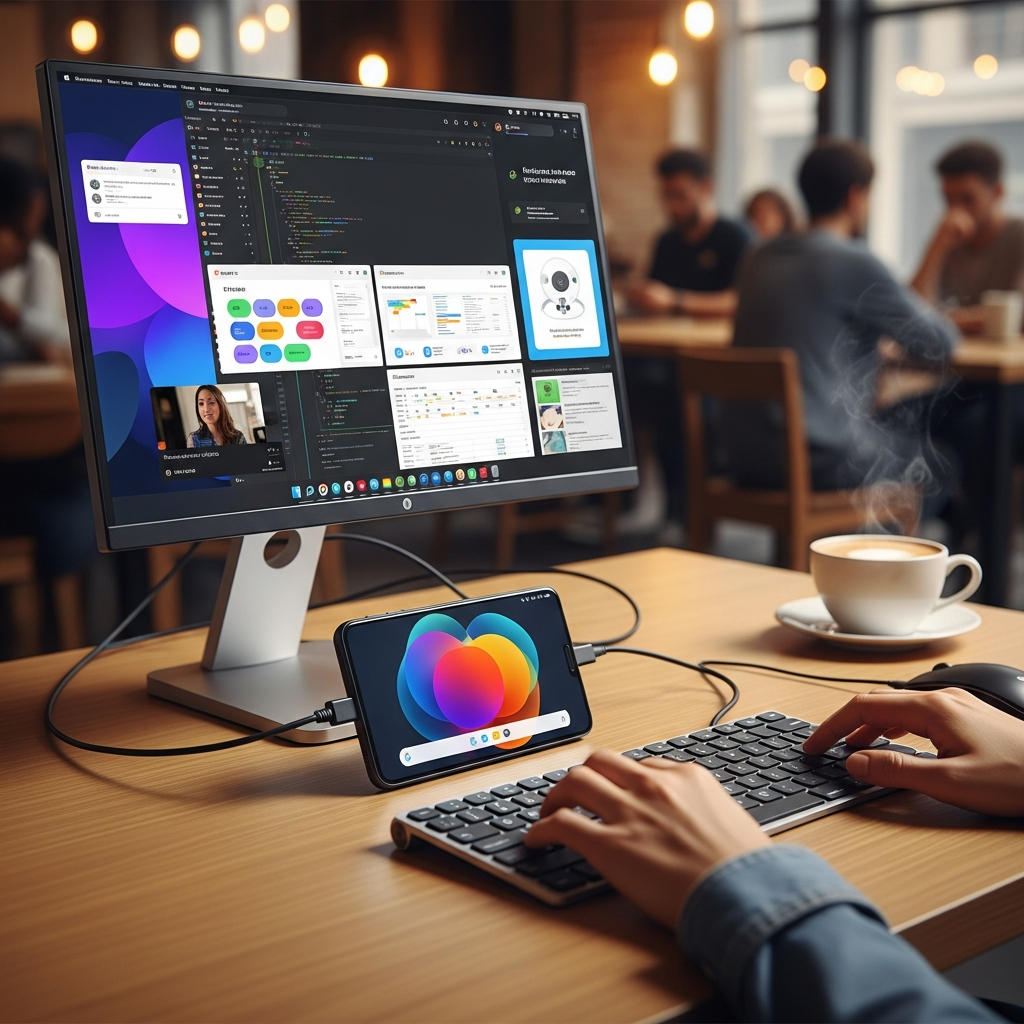
Forget bulky laptops! Your Android phone holds the power to transform into a versatile desktop computer. Imagine a seamless workspace, whether at home, in a hotel, or a coffee shop, all powered by the device in your pocket. This guide reveals how you can leverage your Android phone for a full-fledged desktop experience, echoing the innovative spirit of mobile computing pioneers. Discover the simple steps, essential accessories, and smart strategies to boost your productivity.
The Dream of Mobile Desktop: Continuum’s Legacy and Android’s Evolution
For years, the idea of a single device serving both mobile and desktop needs captivated tech enthusiasts. Microsoft’s Continuum, introduced with Windows phones, was a groundbreaking attempt. It allowed users to connect their smartphone to an external display and peripherals, offering a PC-like interface. While Continuum ultimately faded, its vision for a portable, unified computing experience left a lasting impact.
What Was Microsoft Continuum?
Microsoft Continuum wasn’t just mirroring a phone screen; it truly adapted. When connected to a monitor, keyboard, and mouse, Windows phones would switch to a desktop interface. This offered a familiar Windows Start Menu, taskbar, and applications optimized for larger screens. It demonstrated the immense potential of using a smartphone as your primary computing device, setting a precedent for future mobile innovations.
Why Android is Primed for Desktop Experiences Today
Android devices have evolved dramatically. Modern processors, ample RAM, and high-speed USB-C ports make many flagship Android phones more powerful than entry-level laptops. This raw power, combined with advancements in software and connectivity, positions Android perfectly to deliver on Continuum’s original promise. Today, various solutions allow you to connect your phone to external displays and peripherals, creating a functional desktop environment for work, entertainment, or study.
How to Transform Your Android Phone Into a Full Desktop
Turning your Android phone into a desktop PC might seem complex, but it’s surprisingly straightforward. Two main approaches dominate the landscape: native desktop modes built into certain phones and universal third-party solutions.
Method 1: Native Desktop Modes (e.g., Samsung DeX, Motorola Ready For)
Several Android manufacturers offer their own dedicated desktop environments. These solutions provide the most integrated and polished experiences, often coming with optimized interfaces and features.
What You Need: Hardware & Accessories
For native desktop modes, you’ll typically need:
A Compatible Phone: Devices like Samsung’s Galaxy S and Note series (with DeX), or Motorola phones (with Ready For) are prime examples.
USB-C to HDMI Adapter/Hub: This connects your phone to a monitor. A hub often includes extra USB ports for a keyboard and mouse.
External Monitor: Any standard HDMI monitor or TV will work.
Keyboard and Mouse: Wired or wireless (Bluetooth) options are compatible.
Setting Up Your Native Desktop Environment
The setup process is remarkably simple. Just connect your phone to the USB-C hub, then plug in your monitor, keyboard, and mouse. Your phone will usually detect the external display and prompt you to activate its desktop mode. For instance, Samsung DeX offers a multi-window interface, a taskbar, and desktop-optimized apps, making it feel very much like a traditional computer. This setup is ideal for users seeking a familiar and robust computing experience.
Method 2: Third-Party Solutions & Apps
If your phone doesn’t have a native desktop mode, don’t despair! Many apps and accessories can still help you achieve a desktop-like experience. These solutions often focus on screen mirroring, remote access, or creating a virtual workspace.
Popular Apps for Productivity & Remote Access
Screen Mirroring Apps: Tools like AnyDesk or ApowerMirror can cast your phone’s screen to a larger display. While not a true desktop interface, it’s great for presentations or media consumption.
Cloud Desktops: Services such as Google Chrome Remote Desktop or Microsoft Remote Desktop allow you to access a full Windows or Mac computer from your Android phone, displaying its interface on an external screen. This is perfect for demanding tasks that require full desktop software.
Specialized Launchers: Some Android launchers aim to mimic a desktop UI, though these primarily alter your phone’s home screen, not necessarily its external display output.
Pros and Cons of App-Based Solutions
Pros:
Works with a wider range of Android devices.
Often more affordable due to fewer specialized hardware requirements.
Good for specific tasks like remote work or media playback.
Cons:
May lack the seamless integration of native desktop modes.
Performance can depend heavily on network connection (for cloud solutions).
User interface might not be fully optimized for a desktop environment.
Essential Gear for Your Android Desktop Setup
To maximize your Android desktop experience, investing in the right accessories is crucial. These tools enhance functionality, comfort, and productivity, making your mobile workstation truly effective.
Key Peripherals: Displays, Keyboards, Mice
Choosing the right peripherals can make a significant difference.
External Display: Consider portability. A compact 15-inch portable monitor is perfect for travelers. For a permanent setup, any standard desktop monitor will work. Look for displays with multiple input options for versatility.
Keyboard: A full-sized ergonomic keyboard offers the best typing experience. Bluetooth keyboards are convenient for wireless setups, while wired options ensure zero latency.
Mouse: A wireless Bluetooth mouse provides freedom of movement. For precision tasks, a good optical mouse is indispensable. Some users prefer trackpads for a laptop-like feel.
Connectivity: USB-C Hubs and Wireless Solutions
The USB-C hub is arguably the most critical component. It expands your phone’s single USB-C port into multiple connections:
HDMI/DisplayPort: For video output to your monitor.
Multiple USB-A Ports: For connecting your keyboard, mouse, flash drives, or external hard drives.
Power Delivery (PD) Passthrough: Crucial for charging your phone while using it as a desktop, preventing battery drain during long sessions.
Ethernet Port: For a stable wired internet connection, ideal for remote work or online gaming.
For wireless enthusiasts, Bluetooth is your friend. Most modern keyboards and mice connect effortlessly via Bluetooth, reducing cable clutter. Wi-Fi enables internet access, though a wired Ethernet connection via your USB-C hub can offer superior stability and speed.
Who Benefits Most from an Android Desktop?
The concept of a phone-powered desktop isn’t for everyone, but several user groups find it incredibly useful and efficient.
On-the-Go Professionals & Travelers
For business travelers, consultants, or digital nomads, carrying a laptop can be cumbersome. An Android phone, a portable monitor, and a compact hub offer a lightweight, powerful alternative. You can answer emails, edit documents, or give presentations from almost anywhere, making hotel rooms or airport lounges into temporary offices. This setup significantly reduces baggage weight and simplifies travel logistics.
Budget-Conscious Users & Minimalists
Why buy a separate desktop PC when your smartphone can do most of the work? For users with basic computing needs—browsing, word processing, streaming—an Android desktop can be a highly cost-effective solution. It consolidates devices, saves money, and reduces electronic clutter. This minimalist approach aligns with modern trends towards efficiency and reduced consumption.
Students & Casual Users
Students can use their phone to write essays, conduct research, and collaborate on projects on a larger screen, without the expense of a dedicated laptop. Casual users can enjoy media, manage photos, or engage in light gaming with a better viewing experience than their phone screen alone. It’s an accessible way to get more out of a device you already own.
Optimizing Your Android Desktop Experience
To ensure your mobile desktop setup runs smoothly, consider these optimization tips and essential security practices.
App Compatibility and Performance Tips
Not all Android apps are designed for a desktop environment. While native desktop modes like DeX optimize many popular apps, some might still look like phone apps stretched across a large screen.
Choose Desktop-Optimized Apps: Look for apps that support resizable windows or tablet interfaces. Google’s own productivity suite (Docs, Sheets, Slides) works well, as do Microsoft Office apps and many web browsers.
Close Background Apps: Just like a traditional PC, too many background apps can slow down your phone. Regularly clear recent apps to free up RAM.
Keep Your Phone Updated: Software updates often bring performance improvements and better desktop mode stability.
Use High-Quality Cables and Hubs: Cheap accessories can lead to connectivity issues or slower performance. Invest in reputable brands for reliability.
Security Considerations for Mobile Workstations
Using your phone as a desktop requires the same security vigilance as any other computer.
Strong Passwords/Biometrics: Secure your phone with a strong passcode, fingerprint, or facial recognition.
Keep Software Updated: Regularly update your phone’s operating system and apps to patch security vulnerabilities.
Use a VPN: Especially when connecting to public Wi-Fi networks, a Virtual Private Network (VPN) encrypts your data, protecting it from eavesdropping.
Backup Your Data: Regularly back up your important files to cloud storage or an external drive. This safeguards against data loss in case of device failure or theft.
- Be Wary of Public Displays: If you connect to public monitors, ensure sensitive information isn’t left on screen or stored in temporary files.
The Future of Mobile Computing: Android at the Core
The journey from Microsoft’s Continuum to today’s sophisticated Android desktop modes highlights a clear trend: the smartphone is becoming the central hub for our digital lives. As mobile processors grow more powerful and software integration improves, the line between phone and PC will continue to blur. Imagine future Android devices seamlessly transitioning between a compact handheld, a tablet, and a full desktop workstation with AI-powered task management and predictive functionality. This evolution promises greater flexibility, efficiency, and accessibility for users worldwide, truly fulfilling the vision of computing that fits in your pocket.
Frequently Asked Questions
What specific Android phones support a native desktop experience like Samsung DeX?
Many flagship Android phones, particularly from Samsung, offer robust native desktop experiences. Samsung’s Galaxy S series (S8 and newer), Galaxy Note series, and some of their Tab S tablets feature Samsung DeX. Motorola offers a similar feature called Ready For on devices like the Moto G100 or Edge series. LG also had a desktop mode called Desktop Mode on select phones before discontinuing its mobile division. Always check your specific phone model’s specifications to confirm its desktop mode capabilities.
What are the main advantages of using a USB-C hub for an Android desktop setup?
A USB-C hub is essential because it expands your phone’s single USB-C port into multiple, crucial connections. It typically provides an HDMI or DisplayPort output for connecting to an external monitor, multiple USB-A ports for peripherals like keyboards, mice, and flash drives, and a Power Delivery (PD) passthrough port to charge your phone simultaneously. Some hubs also include an Ethernet port for a stable wired internet connection, transforming your phone into a true mini-PC workstation.
Is an Android desktop setup suitable for intensive tasks like video editing or graphic design?
While modern Android phones are powerful, an Android desktop setup is generally not ideal for intensive tasks like professional video editing or graphic design that require dedicated graphics processing and high-end software. These setups excel at productivity tasks such as document creation, email, web browsing, presentations, and light media consumption. For demanding creative work, a traditional desktop PC or powerful laptop still offers superior performance, software compatibility, and hardware acceleration.
Conclusion
The legacy of mobile desktop computing, once championed by Microsoft Continuum, has found a powerful new life in the Android ecosystem. Today, turning your Android phone into a desktop is not just a futuristic concept but a practical reality for enhancing productivity and embracing a minimalist approach to technology. Whether you leverage a native solution like Samsung DeX or utilize a smart combination of apps and accessories, the power to create a full workstation from your pocket is within reach. Embrace this mobile transformation; streamline your digital life and discover a new level of flexible computing. Your phone is more capable than you think – unlock its full potential today.